> For the complete documentation index, see [llms.txt](https://support.parvenu.io/llms.txt). Markdown versions of documentation pages are available by appending `.md` to page URLs; this page is available as [Markdown](https://support.parvenu.io/features/enrich/personalize-with-ai.md).
# Personalize with AI
AI-powered personalization for creating engaging icebreakers that turn prospects into conversations.
{% hint style="info" %}
Personalizing with AI costs **1/2 credit** / row.
{% endhint %}
## About Personalizing with AI
Parvenu gives you the ability to created personalized outreach messages that can be used as text replacements in cold emails, the same way you use #firstName# or #company#.
Custom AI Prompt
## How to set up Personalize with AI?
1. Build your List
Build a list using either one of our sources.
{% content-ref url="/pages/kgcUzHZt6CGZL0S49Ab5" %}
[Sources](/features/sources.md)
{% endcontent-ref %}
2. Navigate to your [Lists](https://app.parvenu.io/app/lists) page and select the list you want to personalize
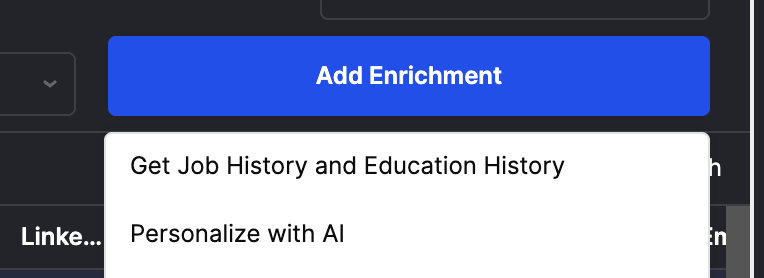
3. Click "Add Enrichment"
4. Select "Personalize with AI"
Personalize with AI
5. Enter your prompt. Try starting with an [example prompt](#example-prompts) below.
6. Select your [mode](#mode).
7. Wait a few minutes for the results
8. Download your results or export them to one of our integrations.
9. Use the personalizations created as custom text replacements in your email platform of choice.
{% hint style="info" %}
You need to refresh the list to see the results.
{% endhint %}
#### Adding details from each contact
Click **Variables** under the prompt box. Search for a column, like First Name or Company, and pick it. It shows up in your prompt as a colored tag. When the enrichment runs, each contact's own value is filled in.
{% hint style="info" %}
You can still type a column name in double curly brackets, like {{First Name}}. It turns into a tag on its own.
{% endhint %}
#### Mode
You can choose how you want the enrichment to behave.
* **Blank Only** - Run the enrichment on blank rows in the table. Rows that already have the enrichment filled will not re-run.
* **All** - Run the enrichment on all rows in the list. Overwrites existing data.
* **First 10** - Run the enrichment on the first 10 rows of your list. Perfect for testing your prompt without spending too many credits.
## Example Prompts
### Name Personalization
#### Input
> I want you to create something funny or interesting related to the {{First Name}} or {{Last Name}} of the person.
>
> It should be positive, like a "did you now - " about the name. Something that is not obvious. It can be historical reference, other famous people with the name, where it came from, what it is in other languages, and many other interesting things you can find that would give them insights into their name, so they are more likely to respond to our cold outbound email.
>
> Keep it to 1 sentence. Only reply with the personalization.
#### Output
> Did you know that the name "Dionne" has French roots, meaning "divine," and is famously associated with the Dionne quintuplets, the first recorded identical quintuplets to survive infancy, who became an international sensation in the 1930s?
### How to Use the Personalization in your Outbound Campaigns
After you've created your personalizations, you can use them as text replacements in your campaign.
#### Example Email with Personalization
> Hi Dionne,
>
> Did you know that the name "Dionne" has French roots, meaning "divine," and is famously associated with the Dionne quintuplets, the first recorded identical quintuplets to survive infancy, who became an international sensation in the 1930s?
>
> Anyway :) - saw you're running a killer coaching company. We connect businesses with ambitious marketing interns who are looking to gain some experience.
>
> The interns are available for $5 / hour, and I've got 3 interns ready to jump in.
>
> Want me to set something up?
## Tips for Prompts
* Be specific - IE if you only want it to generate a sentence, explicitly tell it that.
* If you only want to prompt some of the contacts, you can use the filters and the enrichment will only run on the filtered rows.
* Test your prompt by setting the mode to First 10. Once you're happy with the outputs, run it by setting the mode to All.
## Use Cases
* **Increased Engagement** - These outreach messages are more relatable to the individual prospect than a generic outreach message, making it more likely they respond to your cold outreach.
* **Deliverability Benefits** - ESPs reward highly unique emails with good deliverability. Using this level of personalization means you'll land in the inbox more often.